Meet
Atelier.
What is Atelier?
Atelier is the external-facing side of Cannelle. While your team works inside Cannelle's main application — managing projects, creating quotes, and sending invoices — Atelier gives anyone outside your organisation a clean, simple space to stay in the loop. That includes clients, but also freelancers, contractors, and any other external collaborator you work with regularly.
Think of it as a shared workspace between you and the outside world: a place to exchange documents, send messages, and keep track of what's been invoiced. No email threads, no chasing attachments, no confusion. Just a single, organised place for everything that relates to a working relationship — whether that's a client, a contractor, or any external collaborator.
Your clients access Atelier through a separate web app, using the same passwordless magic link login that your team uses in Cannelle. Nothing to install, nothing to configure — they just open a link and they're in.
Inviting a contact
Any contact saved in Cannelle can be invited to Atelier. You do not need to set up a separate account or fill in extra forms — the contact record already has everything needed.
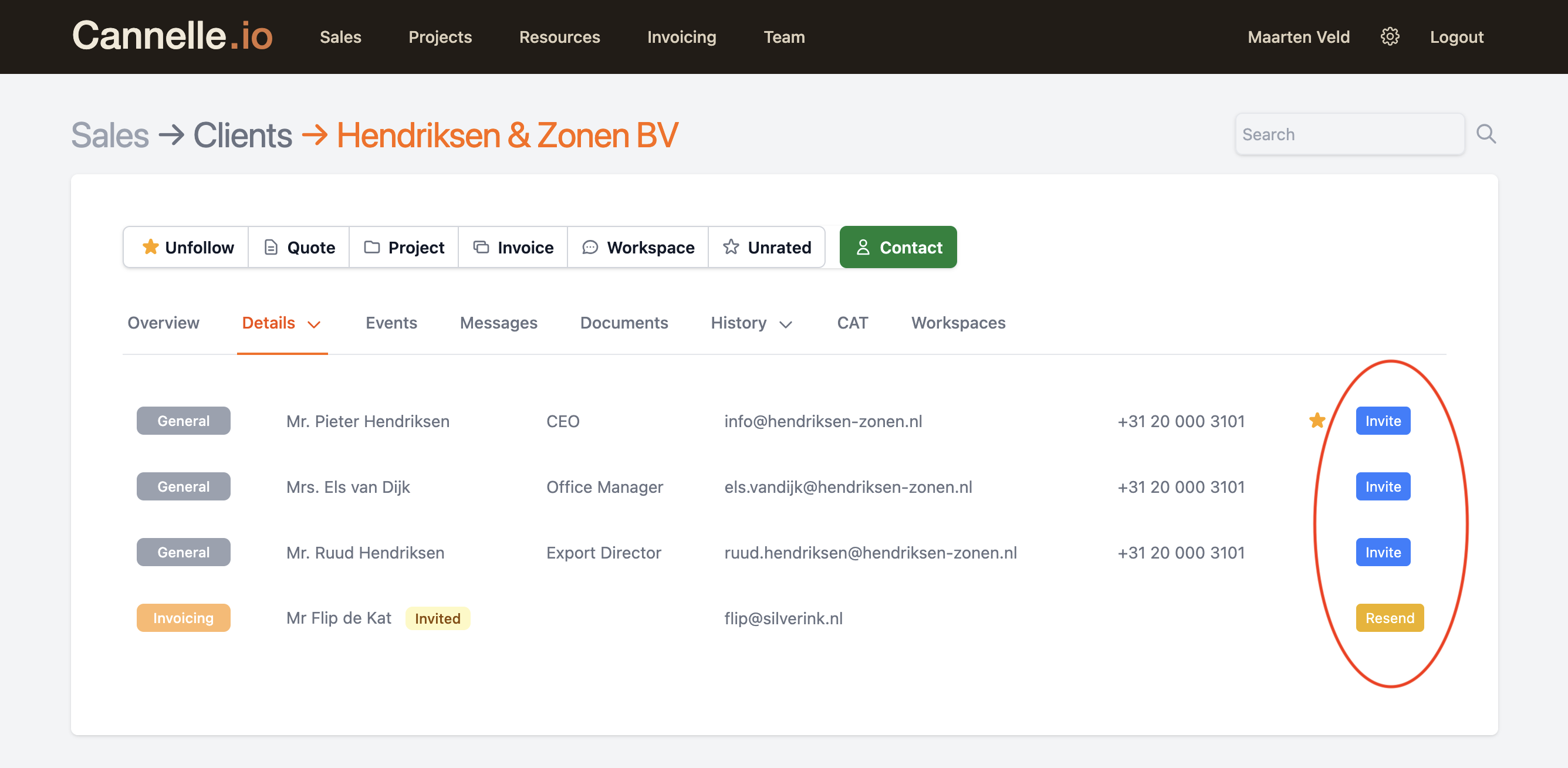
To send an invitation, open the client record in Cannelle and go to the Details tab. Each contact in the list has an Invite button on the right. Click it, and Cannelle sends the invitation immediately.
Once sent, the button changes to Resend and the contact's status updates to Invited. If the person hasn't responded after a few days, you can resend the invitation with a single click.
// good to know
You can invite multiple contacts from the same client — for example, both the project lead and the finance contact. Each person gets their own Atelier account tied to their email address.
Accepting the invitation
Your contact receives a short email letting them know that someone from your company has invited them to collaborate through Cannelle Atelier. The email includes their name, the inviting person's name, and a link to accept.
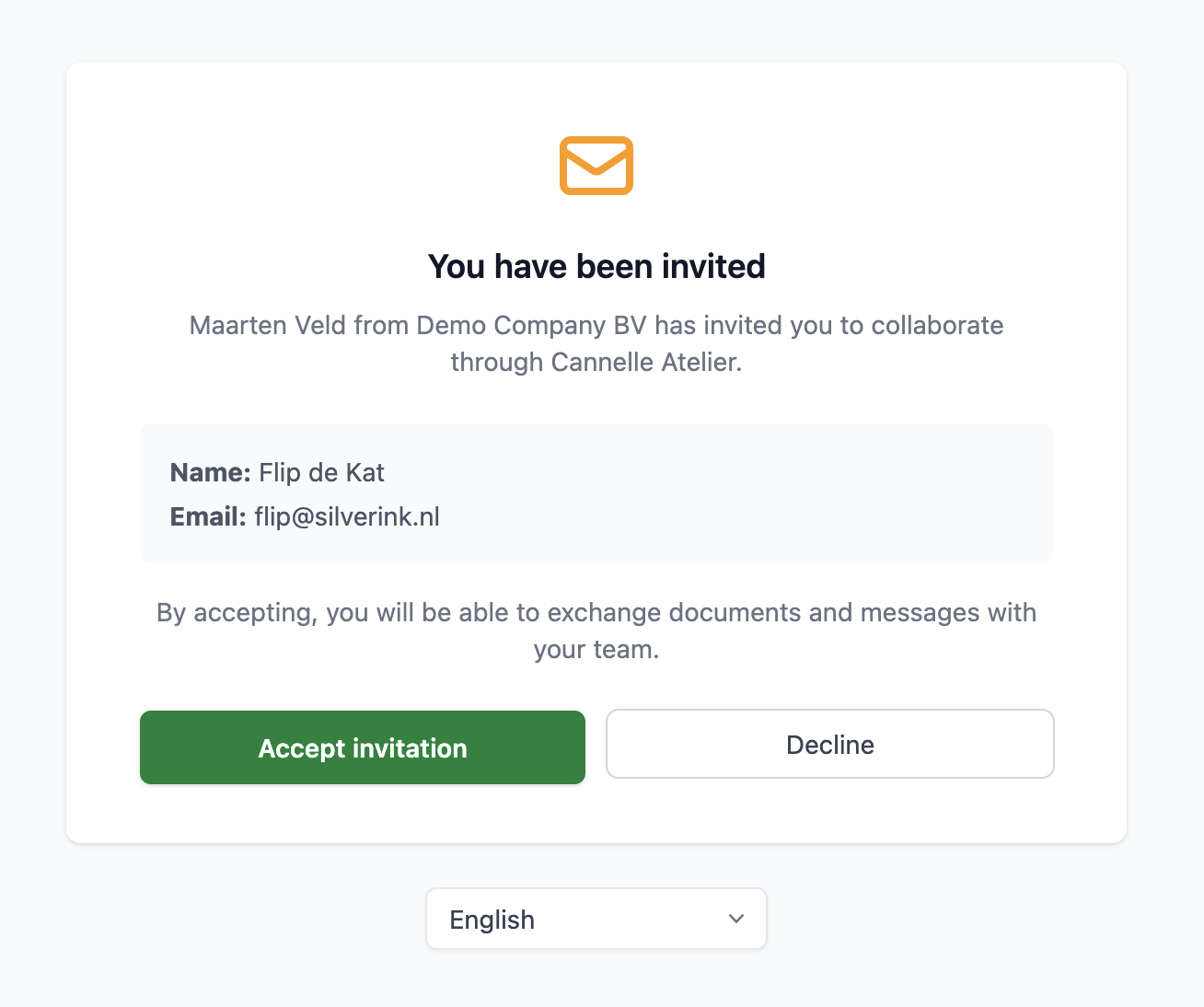
Clicking the link brings them to a simple confirmation page. They can see who the invitation is from, verify that their name and email are correct, and choose to Accept or Decline. No password required, no account creation form — accepting is a single click.
They can also choose the language they prefer before accepting — Atelier is fully translated and will remember their preference for every future visit.
Workspaces
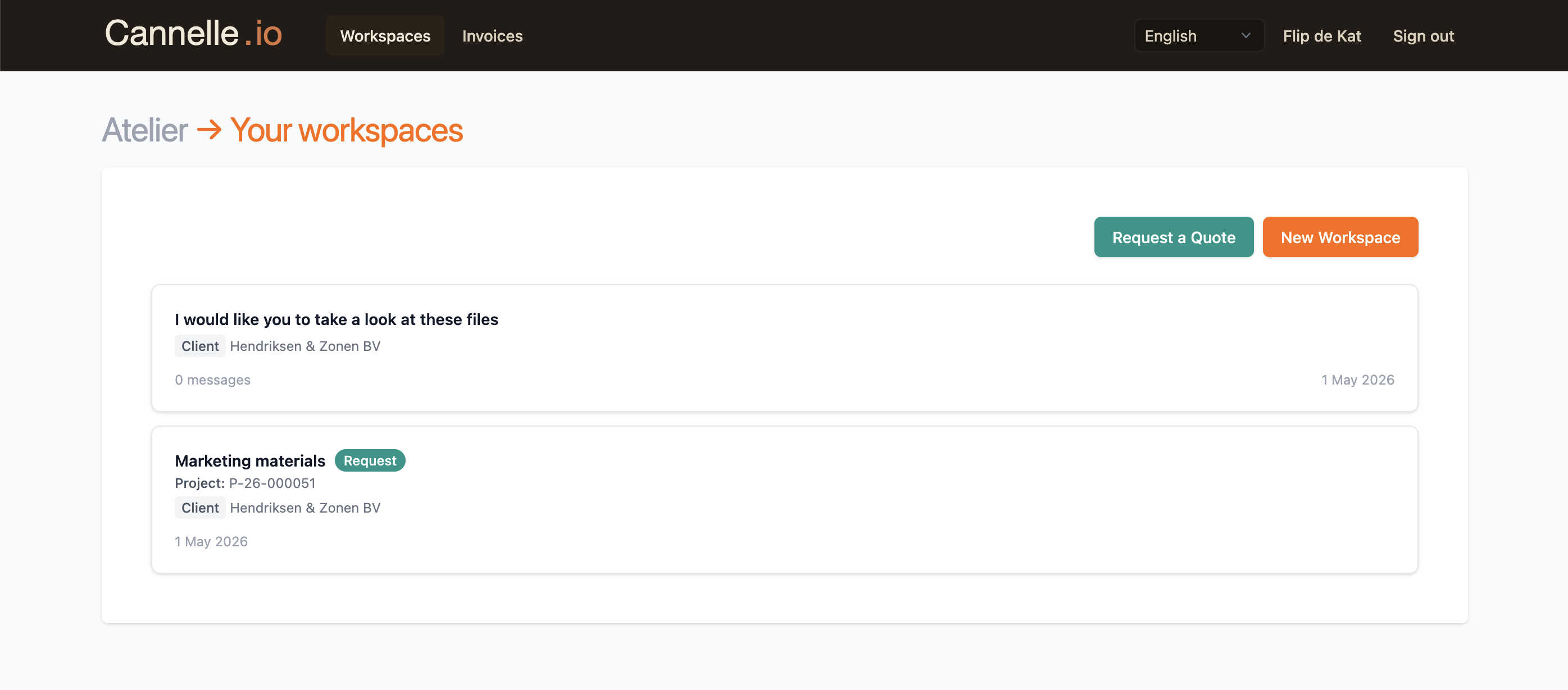
Once inside Atelier, the first thing a client sees is their list of workspaces. A workspace is a shared thread between your team and the client — it can be tied to a specific project, or simply be an open channel for ongoing communication.
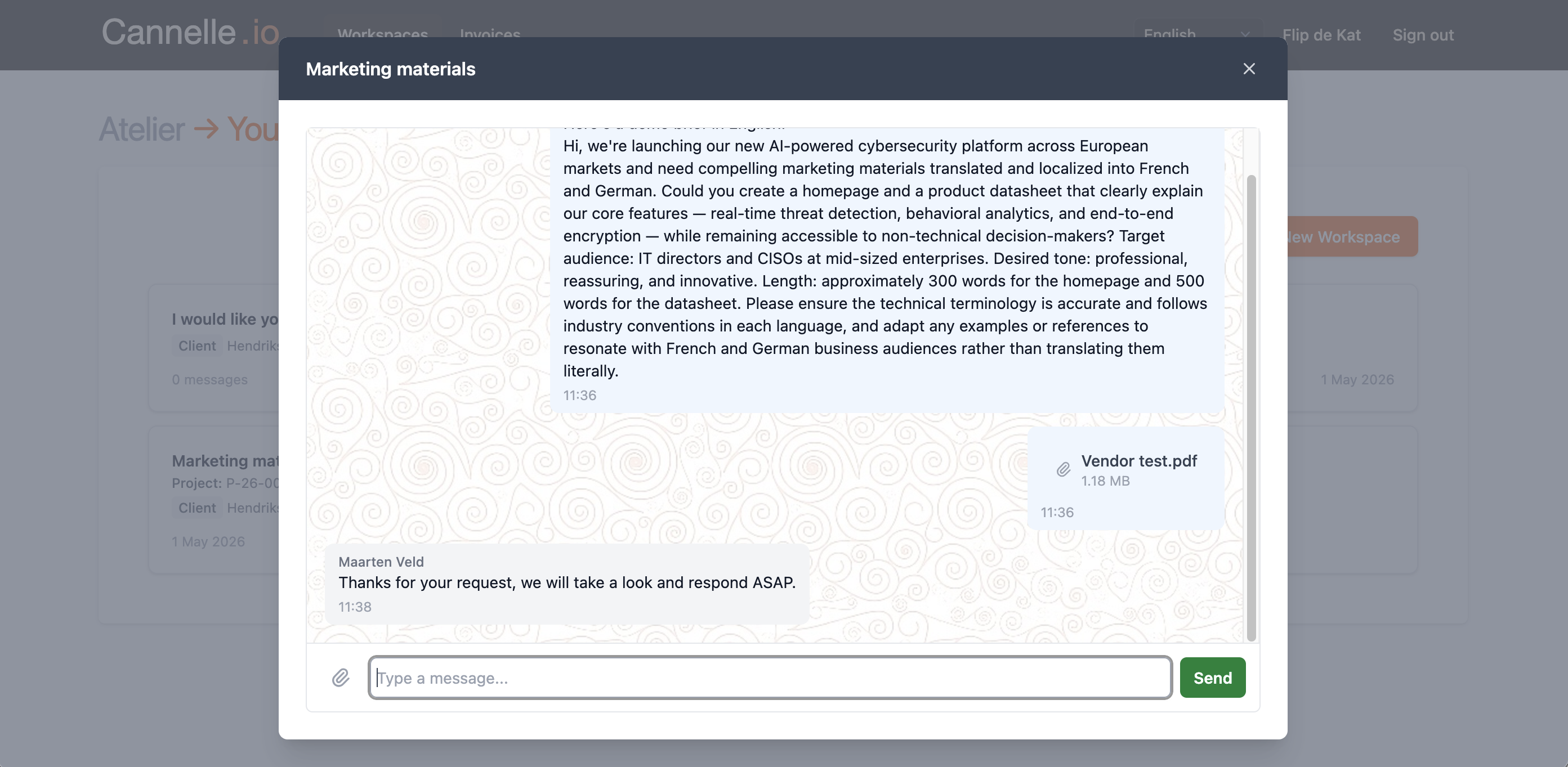
Inside a workspace, clients can read messages from your team, reply, and upload documents. Your team sees the same conversation in Cannelle, so nothing gets lost between apps. It's the same thread, just viewed from two different sides.
Clients can also create new workspaces themselves — useful when they want to share something that is not tied to an existing project. And if they need a quote for new work, there's a Request a Quote button right at the top of the page. They fill in a title, an expected delivery date, a short description, and attach any relevant files. The request lands directly in Cannelle as a new quote request for your team to pick up.
Invoices
Atelier also includes an Invoices section. Whenever your team marks an invoice as sent in Cannelle, it becomes visible to the client in Atelier. No more chasing emails or asking whether an invoice was received — clients can always find their invoices in one place.
Each invoice shows the invoice number, the date, the amount, and a PDF download. That's it. Simple and clear — exactly what a client needs when their finance team is asking for documentation.
// the bigger picture
Atelier is not a replacement for email — it's a complement. You do not have to move everything into it. Start by inviting one or two clients who regularly send documents or ask for project updates. Once they see how clean the experience is, word tends to spread on its own.