Managing clients
in Cannelle.
Introduction
The Clients module is where most day-to-day work in Cannelle begins. Whether you are logging a new business contact for the first time or reviewing the project history of a long-standing client, this is the place to go.
In this post we will walk through the pipeline side of the module — how Cannelle classifies contacts at different stages of the relationship, how records progress automatically as business moves forward, and how to find and follow the clients you care about most. For a tour of everything inside a client record, see part two.
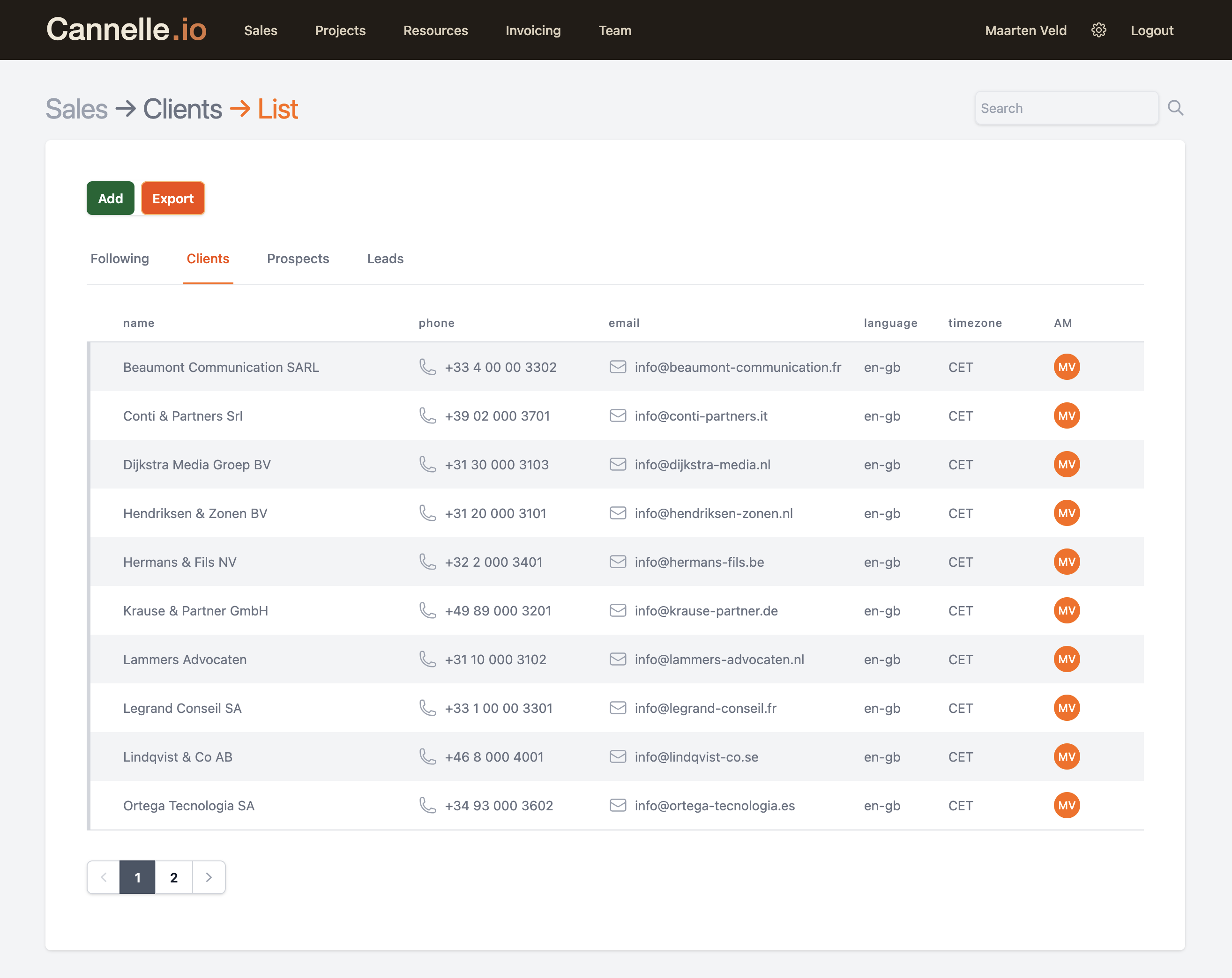
Leads, Prospects, and Clients
Every company you deal with — or hope to deal with — lives in the Clients module. Cannelle uses three stages to reflect where you are in the relationship, and they are shown as separate lists so you can focus on what matters right now.
// the three stages
A new contact you have identified as a potential customer. You may have met them at an event, received a referral, or found them through your own research. Nothing has been formally proposed yet — this is the earliest stage of the pipeline.
A lead you have started working with more actively. A quote has been created and shared. The relationship is moving forward, but no project has been confirmed yet.
A prospect who said yes. A quote has been accepted and converted into a project. This is an active business relationship.
How records move through the pipeline
Cannelle moves records through the pipeline automatically based on what is happening with them commercially. You do not need to manually change a stage — it happens when you take the next business action.
// lead → prospect
When you create a quote for a lead, Cannelle automatically promotes them to Prospect. This signals that the relationship has moved beyond initial interest — you have put a formal proposal on the table. You can create a quote directly from the client record using the New Quote button.
// prospect → client
When a quote is accepted and converted into a project, the prospect becomes a Client. This happens automatically the moment you use the Convert to Project action on the quote. From that point on, the record appears in the Clients list and carries the full project and invoice history going forward.
// nothing is lost
Leads and prospects that do not convert stay in their respective lists indefinitely. You can go back to them at any time, add notes, update contact details, or create a new quote when the timing is right.
Finding a client
There are two ways to find a client record quickly.
Search bar
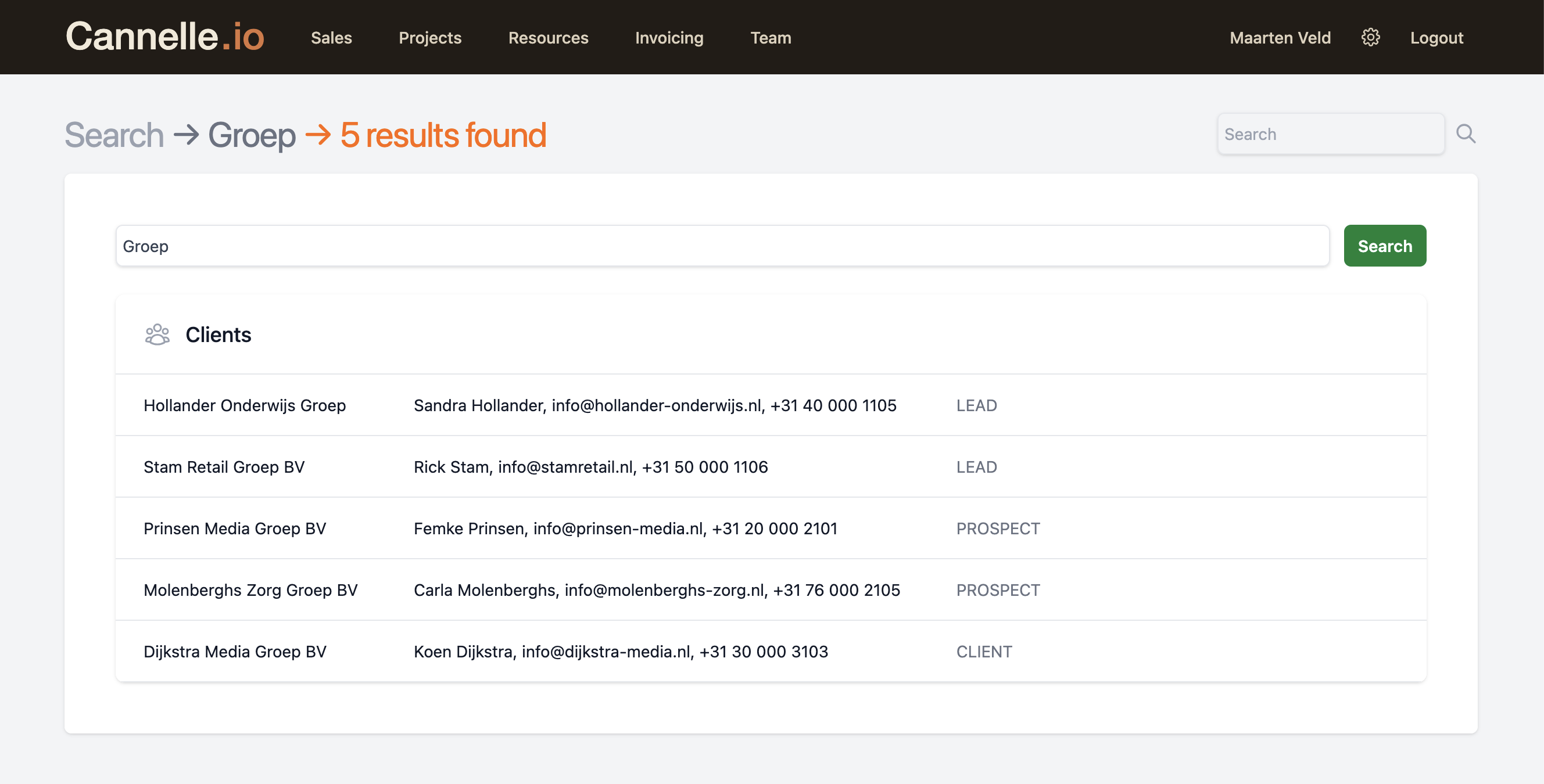
The search bar at the top of every page returns matching clients as you type. It searches across company names and contacts, so you can find a record by the company name or by a contact person's name.
List pages
The Leads, Prospects, and Clients list pages each have their own search and filter. Use these when you want to browse a specific stage or filter by account manager or tag.
Following clients
Cannelle lets you follow any client record you want to keep a close eye on. When you follow a client, updates to that record — new quotes, state changes, notes, new projects — appear in your personal activity feed so nothing slips through the cracks.
// how to follow a client
// where to see your followed clients
Dashboard widget
The Following Feed widget on the dashboard shows the five most recent updates across everything you follow — clients, projects, invoices, and more.
Activity → Followings page
The full paginated activity log for all your followed records, with filters by entity type and date range.
// continue reading
In part two we take a tour of everything inside a client record — the Overview, Details, Events, Messages, Documents, and History tabs.
inside a client record →