Inside a
client record.
Introduction
This is part two of our look at the Clients module. In part one we covered the pipeline — how Leads become Prospects and Prospects become Clients. Here we go deeper into what you actually find when you open a client record.
A client record is made up of six tabs: Overview, Details, Events, Messages, Documents, and History. Each one serves a distinct purpose, and together they give you a complete picture of the relationship — commercial, operational, and historical.
The Overview tab
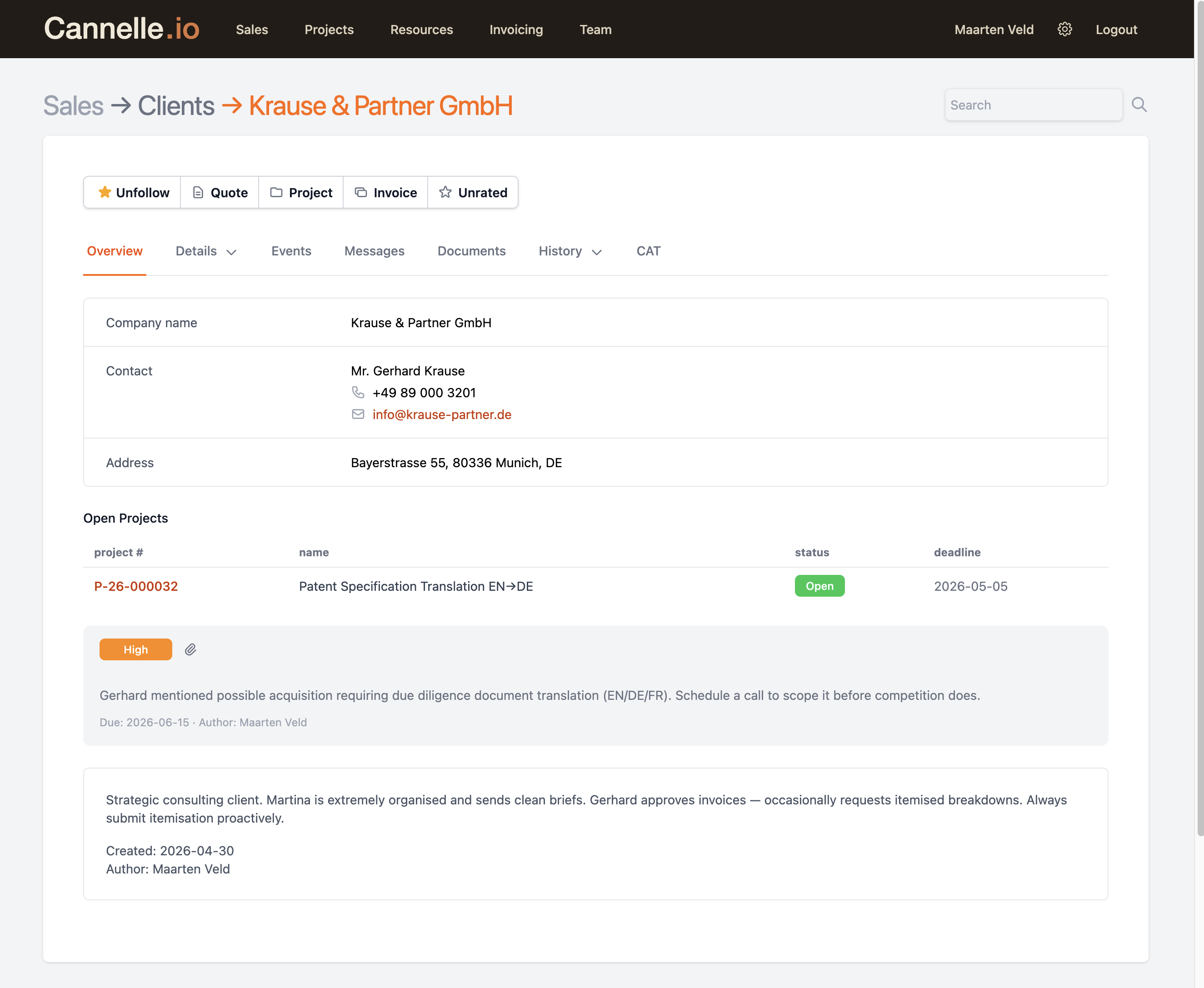
When you open a client record, you land on the Overview tab. It is designed to give you the most important information at a glance without having to dig through multiple tabs.
// what you see
Company name
The full legal name of the client company.
Default contact
The primary contact person — name, phone, and email. Clicking the email opens your mail client.
Default address
The main address on file for this company.
Open projects
A live list of all projects currently in progress for this client, with their code, name, status, and deadline. Each project is a clickable link.
Sticky events
Any notes or follow-up reminders you have pinned to this record appear here so they are never missed.
Financial note
A free-text internal note about billing or financial terms, visible only to your team.
The Details tab
Details is a dropdown tab that groups all the editable information about a client into four sections: Company, Billing, Addresses, and Contacts.
// company
This is where you keep everything that describes the company as a business entity. The obvious things are here — company name, phone, general email, and website — but also the fields that make Cannelle useful across a team.
You can assign an account manager so it is always clear who owns the relationship, set a correspondence language so the right language is used in outgoing emails, and record the lead origin — how this contact found you in the first place. That last one is easy to overlook, but it feeds directly into your sales analytics and helps you understand which channels are actually bringing in business.
Tags and Groups let you slice your client list in reports — useful when you have a large portfolio or work across several industries. The Chamber of Commerce registration number, reference, and timezone round out the profile for those moments when you need the detail.
// billing
Fill this in once and Cannelle will use it every time you create an invoice for this client. The currency, default tax rate, and invoice period (payment terms) are picked up automatically so you are not filling in the same fields over and over.
The debtor ID and VAT number keep your accounting tidy, especially if you are exporting invoices into a separate bookkeeping tool. Bank IBAN and BIC are there for reference — handy when you need to reconcile a payment. If you have special arrangements with a client, the minimum rate and invoice tolerance fields let you capture those without relying on everyone remembering them. And if invoices go to a dedicated finance address rather than the main contact, the invoice email field has you covered.
// addresses
A client can have multiple addresses — a general office address, a separate invoicing address, and a mailing address. You can add as many as you need and mark one as the default, which is what appears on the Overview tab and in generated documents.
// contacts
The people you deal with at this company. Each contact has a name, title, email, and phone. You can have as many as you need and mark one as the default. If you have Atelier enabled, contacts can be invited directly from this tab to give them access to shared workspaces.
The Events tab
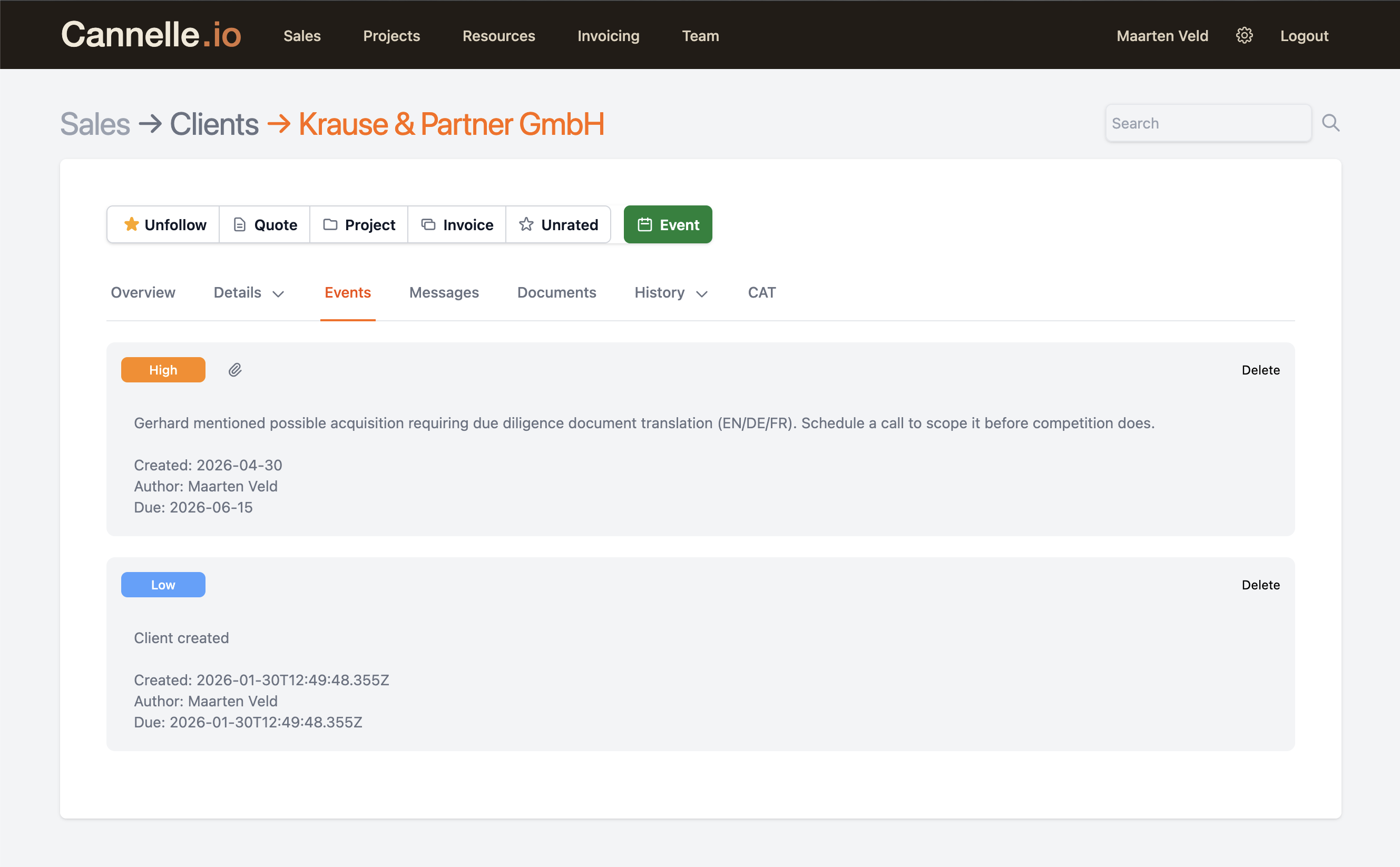
Events are internal notes and follow-up reminders attached to a client record. Think of them as a running log of things your team needs to do or remember in relation to this company.
// event types and priorities
Quote follow-up
A reminder to follow up on a quote that has been sent but not yet responded to.
Complaint follow-up
An issue raised by the client that needs to be addressed or monitored.
Priority levels
Each event has a priority — Critical, High, Medium, or Low — shown as a colour badge so nothing urgent gets buried.
Sticky events
Mark an event as sticky and it will also appear on the Overview tab, making it impossible to miss when you open the record.
The Messages tab
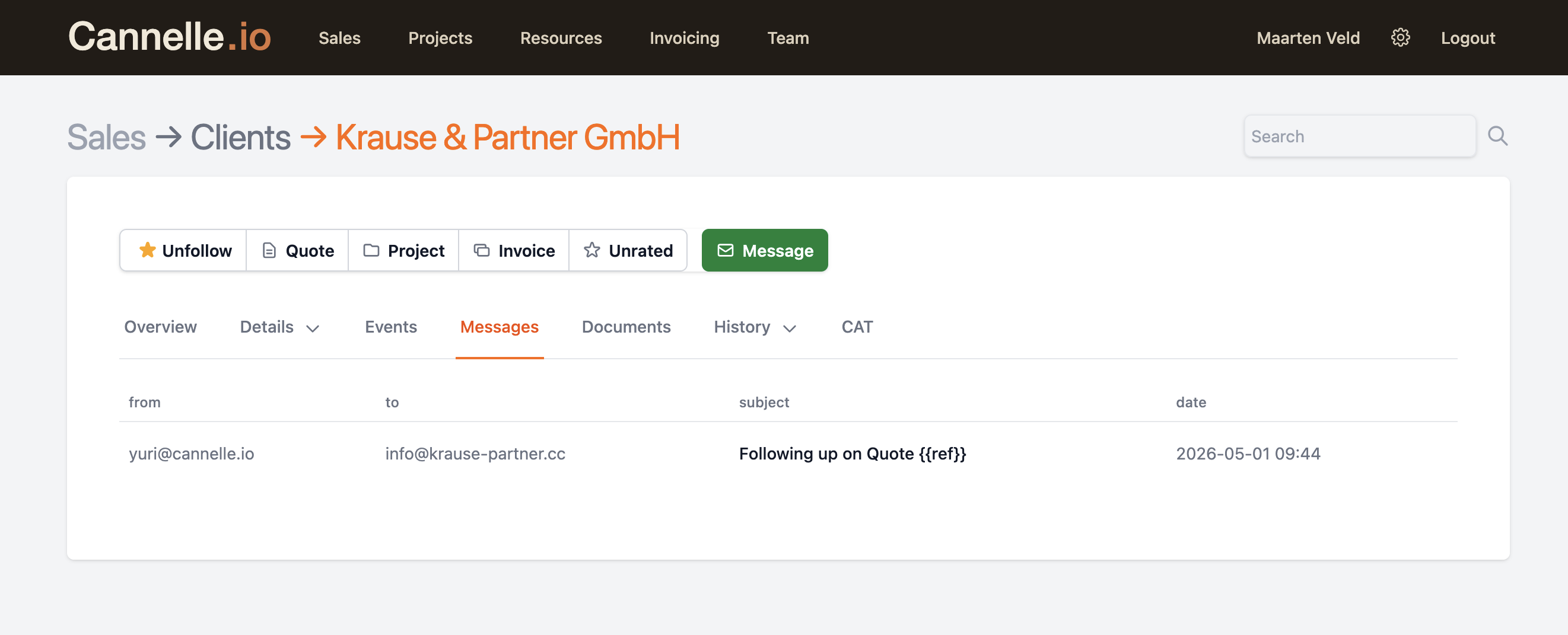
The Messages tab is a log of all emails sent to this client from Cannelle. Every time a team member sends an email — a quote, an invoice, a follow-up — it is recorded here so the whole team has visibility.
You can also compose and send a new email directly from this tab, choosing from your saved email templates or writing a custom message. All outgoing messages are sent from your configured SMTP address and logged here automatically.
The Documents tab
Documents is where you store files that belong to this client but are not tied to a specific project. Contracts, NDAs, briefing documents, signed agreements — anything you want to keep on file against the company record.
Files are uploaded to your configured storage (local or S3) and can be downloaded by any team member with access to the record. There is no limit on the number of documents you can attach.
The History tab
History is a dropdown tab with three sections — Quotes, Projects, and Invoices. Together they give you a complete commercial picture of everything that has ever happened with this client.
All quotes ever created for this client, with their status (Draft, Sent, Converted, Cancelled) and totals. Click any quote to open it directly.
All projects linked to this client, past and present, with their status and deadline. Click any project to open it and see tasks, assignments, and files.
All invoices issued to this client — draft, sent, paid, or in collections — with amounts and payment status. Click any invoice to open it.
// everything is connected
Every quote, project, and invoice in the History tab is a live link. Clicking any row opens the full record directly, so you can jump from a client to a project to an invoice and back without losing your place.
// further reading