The dashboard,
your way.
Introduction
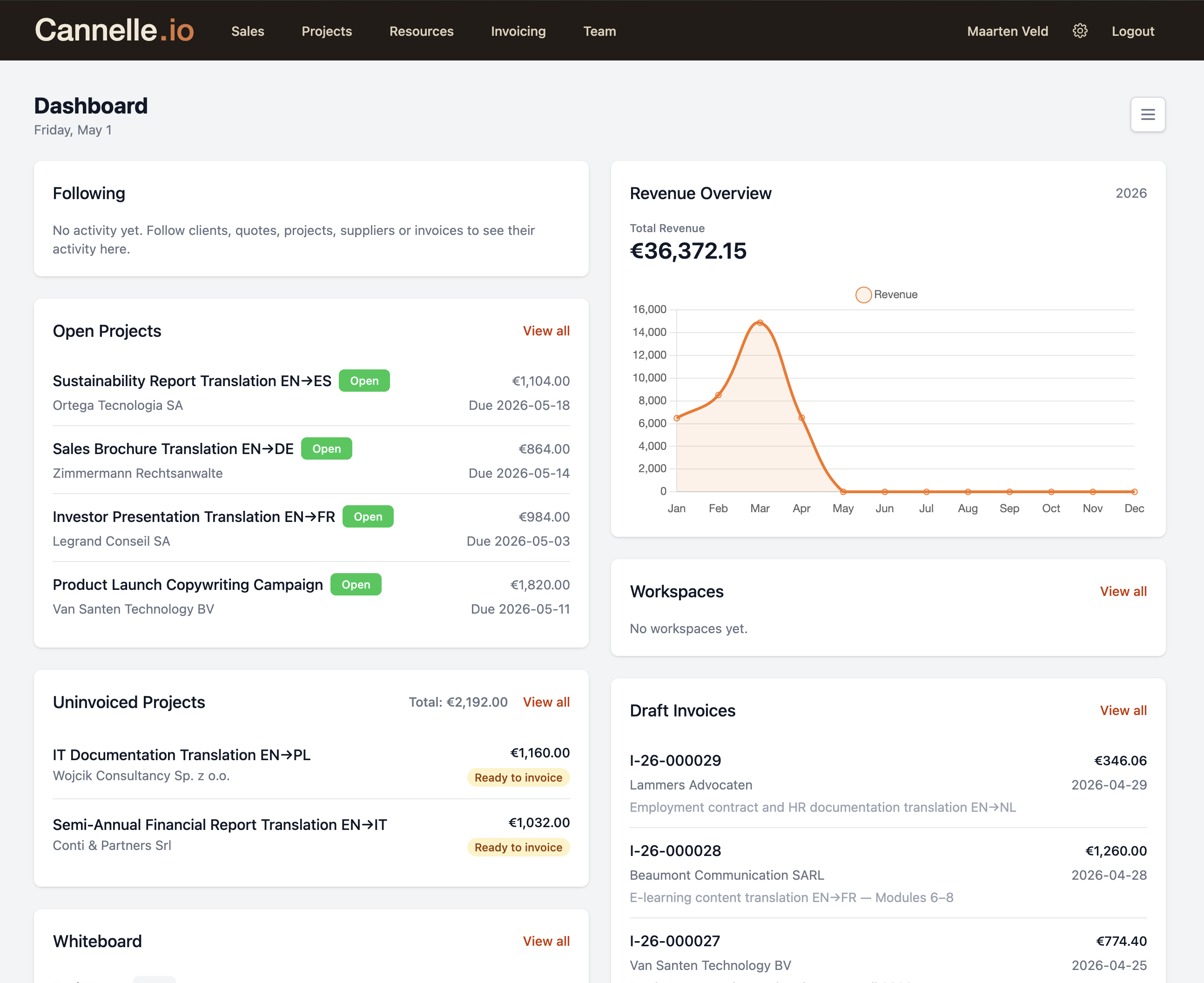
The dashboard is the first screen you see when you log in to Cannelle. Out of the box it shows everything — open projects, revenue, draft invoices, uninvoiced work, a shared whiteboard, Atelier workspaces, and your followings feed. That is a reasonable overview of the whole business, but it is probably too much for any one person's daily workflow.
The dashboard is fully configurable. You can toggle individual widgets on or off, and drag them into any order you like. Your choices are saved in the browser, so everyone on the team can set up their own view without affecting anyone else's. Click the grid icon in the top-right corner of the dashboard to open the widget selector.
Below are four setups worth trying — one for each of the main roles in a typical professional services team.
The seven widgets
Before diving into role-specific setups, here is what each widget actually does.
A list of every project currently active in the system, with its client, status, and deadline. Clicking any row takes you straight to the project record.
A rolling chart of revenue invoiced over recent months. Gives you a quick visual sense of whether the business is trending in the right direction.
All invoices that have been created but not yet sent. A reminder that money is sitting in draft, waiting to go out the door.
Projects that are complete but have not yet had an invoice raised. The gap between work done and work billed.
A shared team message board, visible to everyone in the company. Good for pinned announcements, reminders, or anything that should not live buried in a chat thread.
Your most recently active Atelier workspaces — the shared spaces where your team collaborates with clients on documents, tasks, and chat. Only relevant if you have Atelier enabled.
A live feed of recent activity across all the clients, projects, and invoices you are following. New quotes, status changes, notes — everything in one place.
If you are in sales
A salesperson's day revolves around relationships — keeping track of who you are talking to, where each conversation is in the pipeline, and what needs a follow-up. Most of the dashboard's operational widgets are noise for you. Strip them out and focus on what actually matters: the people.
// suggested setup
// pro tip
Drag the Followings widget to the top-left position so it is the first thing you see. Then arrange the Whiteboard directly below it. That way your first thirty seconds of the day are spent on people and team context — not invoices or project lists.
If you manage projects
Project managers need to see what is in flight, what is about to be late, and what has finished but still needs invoicing — because that last part is the handoff signal to finance. Revenue and draft invoices are not your problem, but the work that generates them is.
// suggested setup
// suggested order
Open Projects top-left, Uninvoiced Projects top-right, Followings bottom-left, Workspaces bottom-right, Whiteboard spanning the bottom. This puts operational status at the top and context at the bottom.
If you handle invoicing
The invoicing person's job starts where the project manager's ends. Your two core questions are: what needs to be invoiced, and what has already been invoiced but not yet sent? Everything else on the dashboard is operational context you do not need every day.
// suggested setup
// suggested order
Draft Invoices top-left, Uninvoiced Projects top-right, Revenue Chart spanning the bottom. The two action items at the top, the big-picture metric below.
If you oversee the whole company
As an owner or director, you are not executing — you are monitoring. Your dashboard should answer three questions at a glance: how is the pipeline looking, how much work is in flight, and is there any cash flow risk I should know about. Everything else is detail you can dig into when you need to.
// suggested setup
// suggested order
Revenue Chart top-left (the number you care most about), Open Projects top-right, Draft Invoices and Uninvoiced Projects in the middle row, Followings at the bottom. Revenue and workload first, cash flow risk second, relationship pulse third.
// one more thing
The dashboard is personal — your configuration does not affect anyone else's. So there is no wrong answer. Start with the setup closest to your role, live with it for a week, and adjust from there. The widget selector is always one click away.