Your AI
Assistance Team.
What is the Assistance Team?
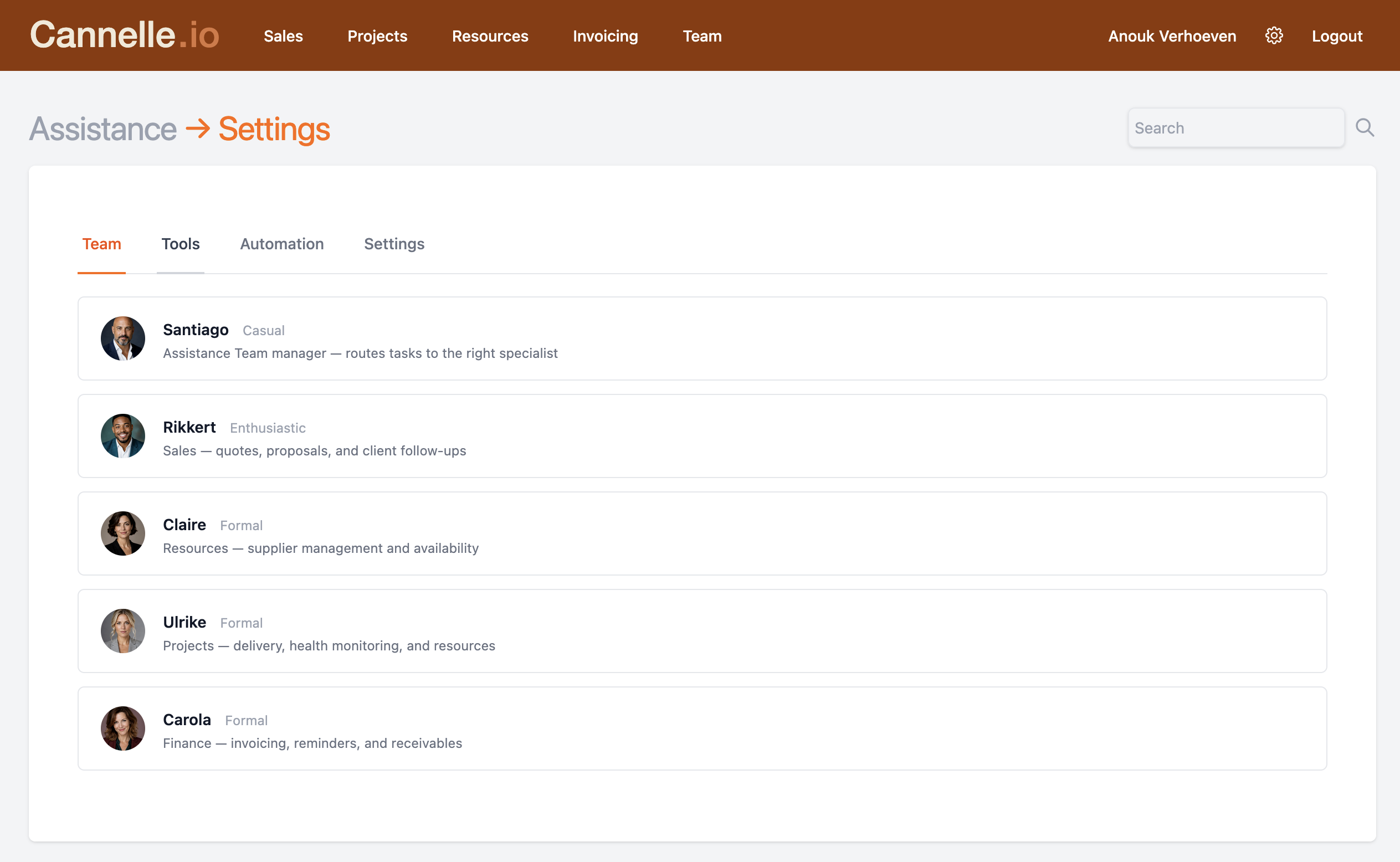
The Assistance Team is a Premium feature that lets you set up a group of AI agents inside Cannelle. Each agent has a name, a role, and a set of tools it can use to interact with your data. Together, they form a team you can call on at any point in your workflow — or leave to run on a schedule in the background.
Agents are not one-size-fits-all. Some are built for specific tasks — drafting a project brief, summarising a client history, flagging overdue invoices — while others are kept general so you can ask them anything in the moment. You decide the mix that makes sense for your team.
The Assistance Team lives under its own section in the Premium application. From there you manage every aspect of each agent: the provider it uses, the model, the tools it has access to, and any scheduled tasks you want it to handle automatically.
Choosing a provider
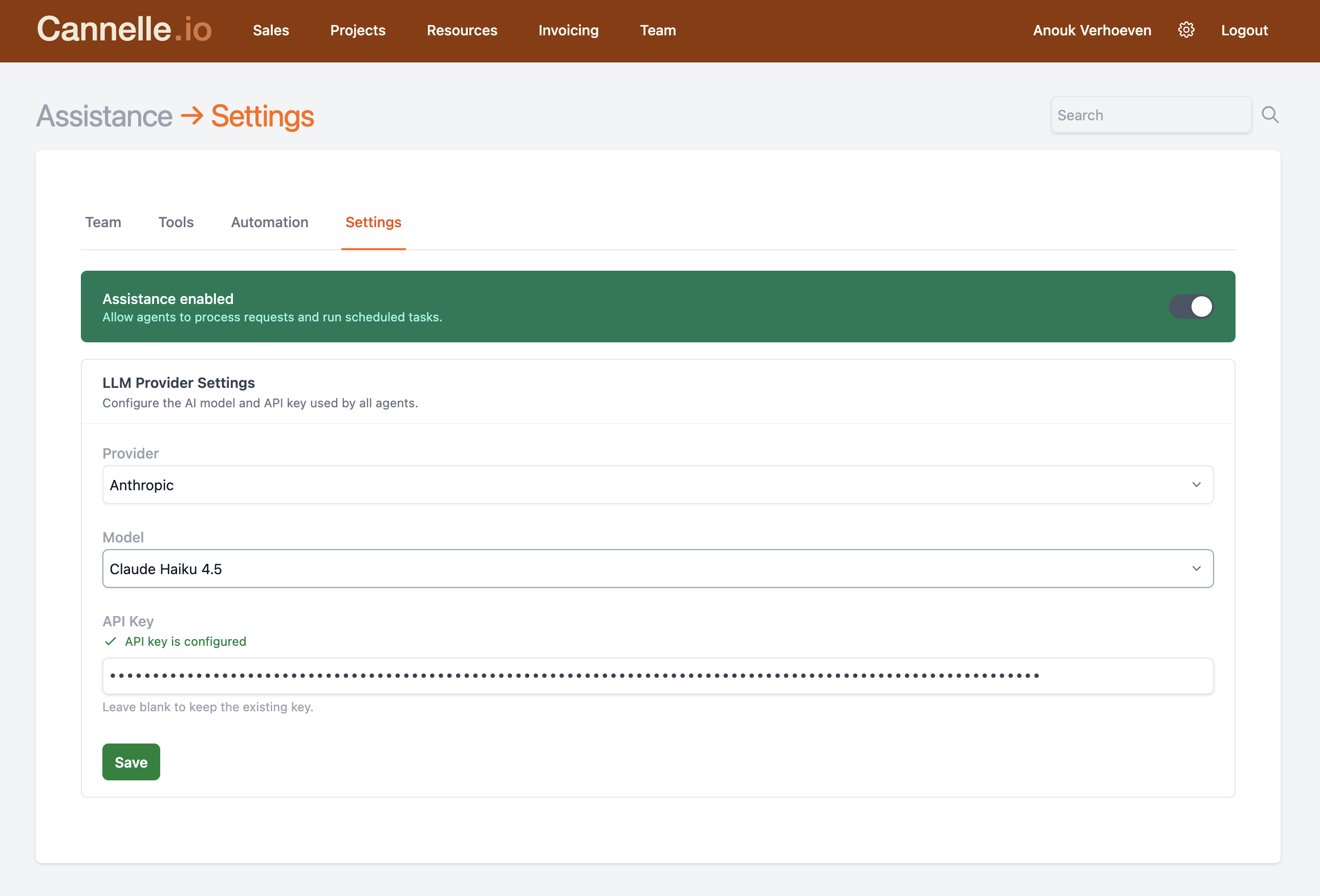
Cannelle does not lock you into a single AI provider. When you create an agent, you choose which provider powers it: Anthropic, OpenAI, or Google. Each provider offers a range of models, and you pick the one that fits the task — a faster, lighter model for routine work, a more capable one for complex analysis.
Different agents on the same team can use different providers. You might run one agent on Claude for nuanced writing tasks and another on a Google model for structured data work. The choice is yours, and you can change it at any time without recreating the agent from scratch.
All you need is an API key for the provider you want to use. Keys are stored securely in your Cannelle settings and are never exposed to the agent itself.
// good to know
Usage is billed directly by the provider using your own API key — Cannelle does not mark up or intermediate the cost. You pay exactly what the provider charges for the tokens your agents consume.
Building your team
Creating an agent takes a minute. Give it a name, write a short description of what it does, pick the provider and model, and save. The agent is immediately available to anyone on the team.
Each agent has a system prompt — a set of standing instructions that shape how it behaves. This is where you define its role, its tone, and any constraints. A billing assistant might be told to stay focused on invoices and financial data. A project assistant might be given context about how your team structures work. The system prompt is yours to write; there are no restrictions on what you can put there.
Agents can be invoked interactively — type a message and get a response — or triggered automatically by a schedule. Most teams end up with a small number of specialised agents rather than one general-purpose assistant. Specialisation keeps responses focused and makes it easier to trust what the agent produces.
Automated tools
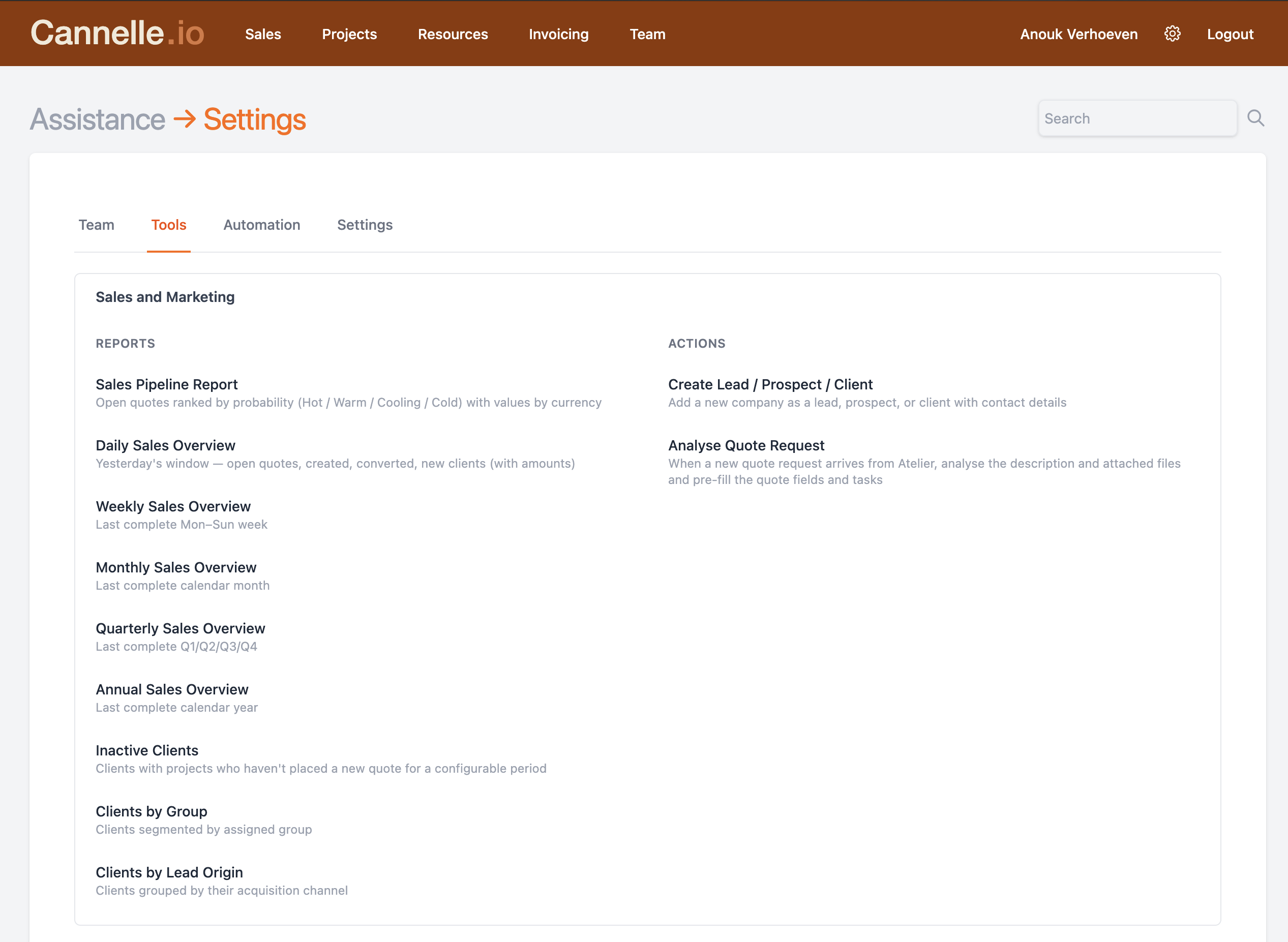
An agent without tools can only work with what you tell it in a message. Tools are what let an agent reach into Cannelle and do real work — reading records, pulling data, creating drafts, sending notifications. You assign tools to each agent individually, so every agent only has access to what it needs.
The available tools cover the main areas of the application: client data, projects, quotes, invoices, tasks, and messaging. A few examples of what a tooled-up agent can do:
- → Look up all open invoices for a client and summarise what is overdue.
- → Pull the message history for a project and draft a status update for the client.
- → Find all tasks assigned to a resource and flag anything past its deadline.
- → Read a newly received quote request and generate a first-pass response with pricing.
Tools run automatically when the agent decides they are needed — you do not have to prompt for each one explicitly. The agent figures out which tools to call, in what order, and combines the results into a single coherent response.
Schedules
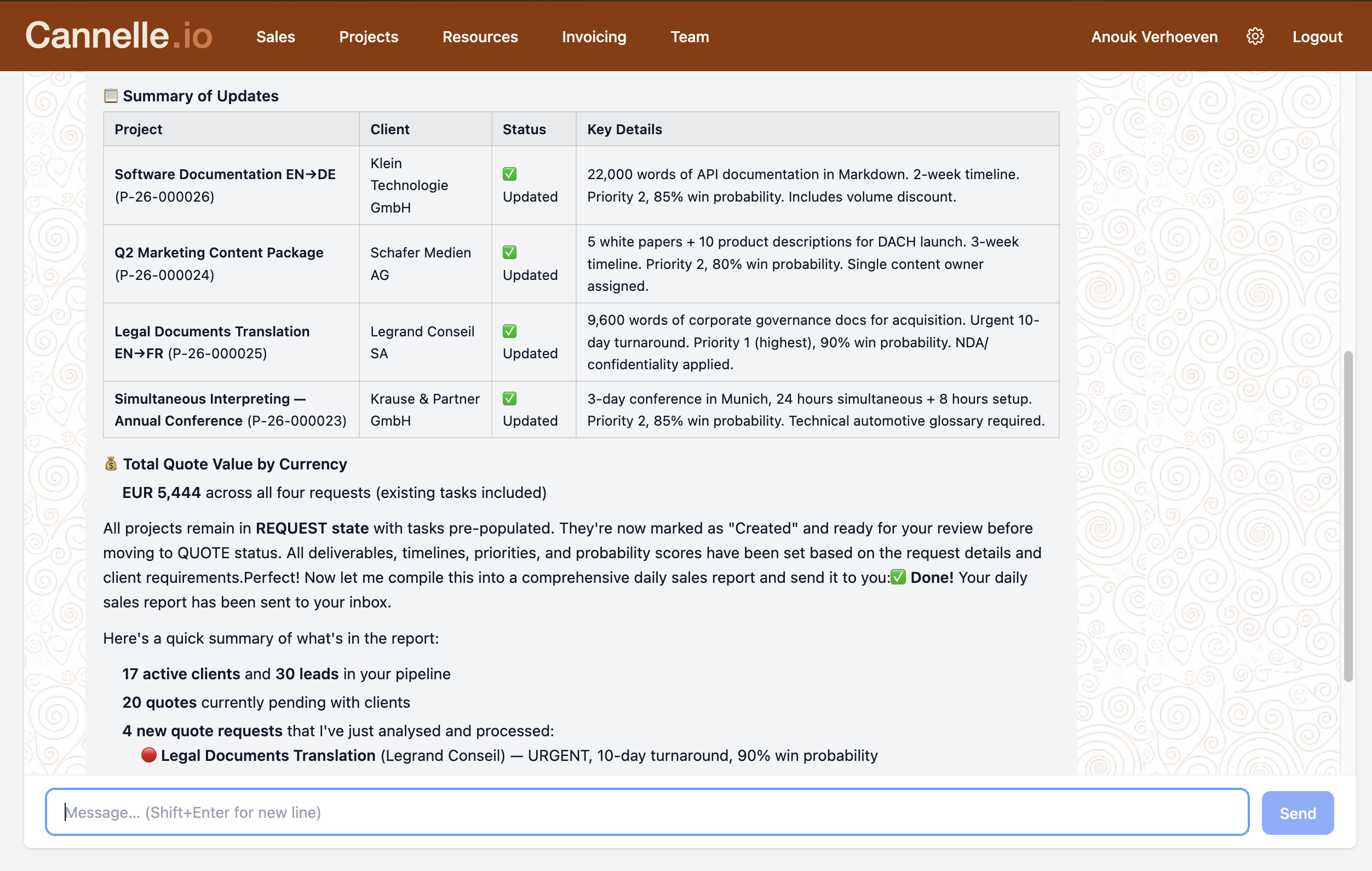
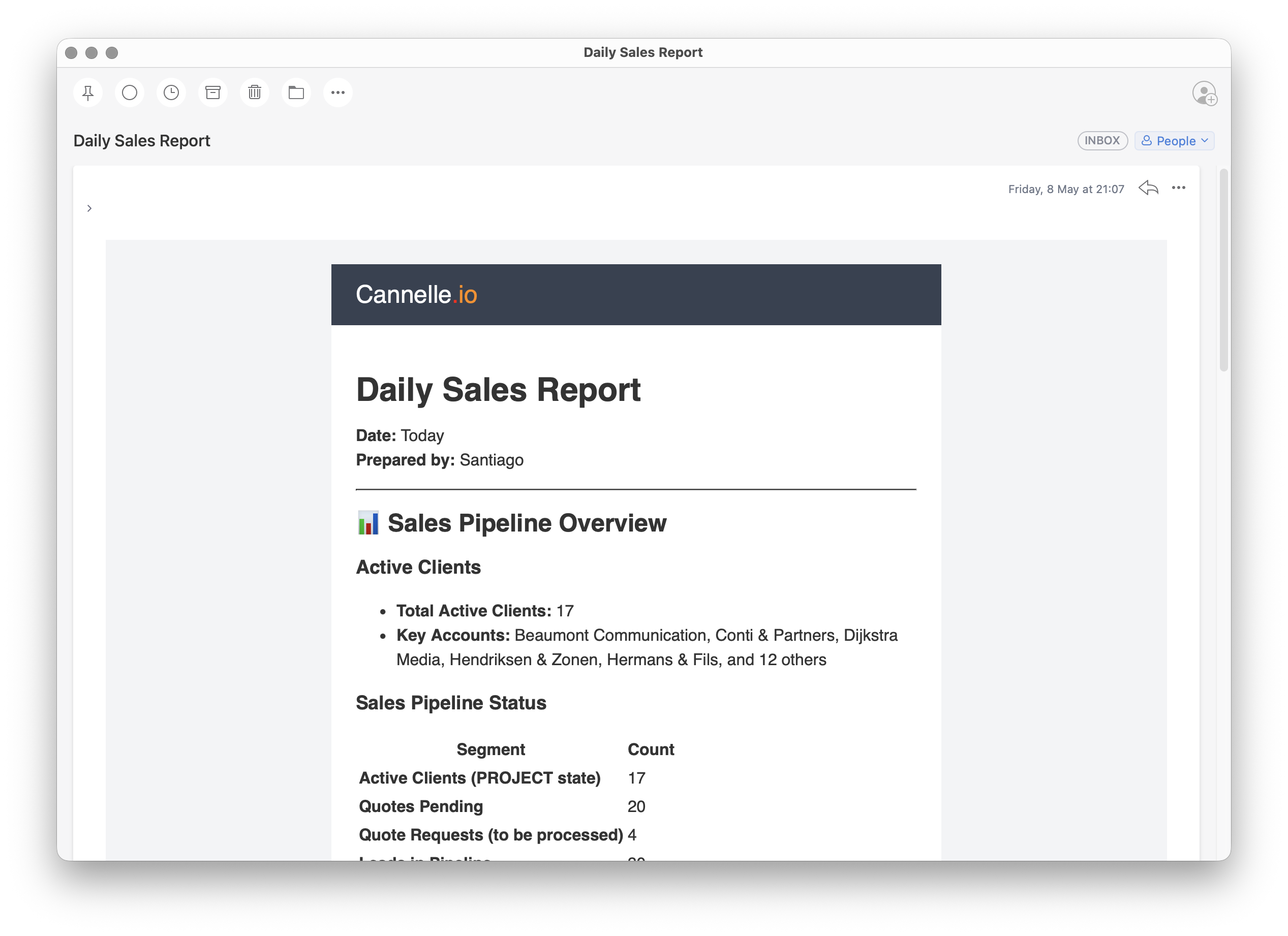
Any agent can be given a schedule — a recurring task it runs on its own, without anyone prompting it. You write the instruction once, set a frequency, and the agent takes it from there. A daily check on overdue tasks, a weekly summary of project margins, a Monday-morning digest of the previous week's activity — these all become set-and-forget.
Scheduled runs are logged so you can review what each agent did and what it produced. If something looks off, you adjust the instruction or narrow the tool access and the next run picks up the change automatically.
// the bigger picture
The Assistance Team is not a single powerful AI that knows everything about your business. It is a set of focused, configurable agents — each with a clear role, the right tools, and a provider you trust. Start with one agent that solves a real, recurring problem. Once you see it working, the pattern is easy to repeat.
This post is a broad introduction. In the coming weeks we will go deeper into each area — providers and model selection, building effective agents, the full tool catalogue, and getting the most out of schedules. Stay tuned.