Track every
billable hour.
What Timesheet tasks are
Some work is priced up front — a fixed fee, a set number of items, a day rate agreed in the quote. But a lot of professional services work is billed as it happens: hours booked against activities, week after week, until the project wraps. For that, you need a timesheet.
The new Timesheet task in Cannelle Premium lets your team book hours on billable activities, per project, right inside the system. Every hour booked does two things at once: it grows the task value — what you bill the client — and it grows the assignment value — what you owe the resource who did the work. There is no separate spreadsheet to reconcile and no double entry. You book the time once, and both sides of the ledger stay correct.
// premium feature
Timesheet tasks are part of the Cannelle Premium edition. External resources book their hours through the Atelier portal — no Cannelle seat required.
Turning it on
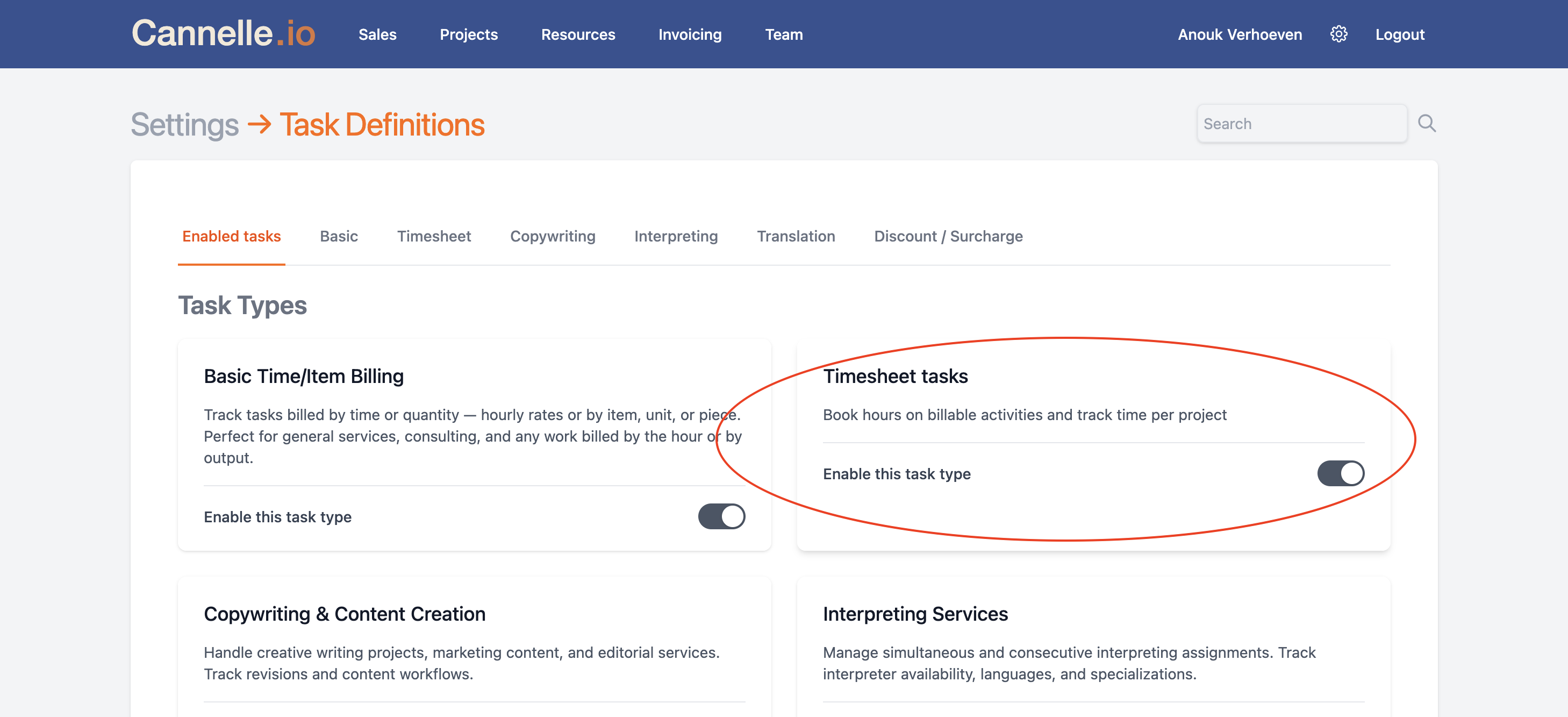
Timesheet is a task type, and like every task type it is switched on by an administrator. Go to Settings → Tasks, find the Timesheet tasks card on the Enabled tasks tab, and flip the toggle. A Timesheet tab appears in the task-type bar, ready to configure.
Once enabled, open the Timesheet tab to set up your billable activities. Cannelle ships with ten sensible defaults — Consulting, Software development, Project management, Meetings & calls, Research & analysis, Design, QA & testing, Documentation, Training & onboarding, and Support & maintenance — each priced per hour. Rename them, change the price or unit, add your own with + new price, drag to reorder, or manage the whole list in Excel with export and import.
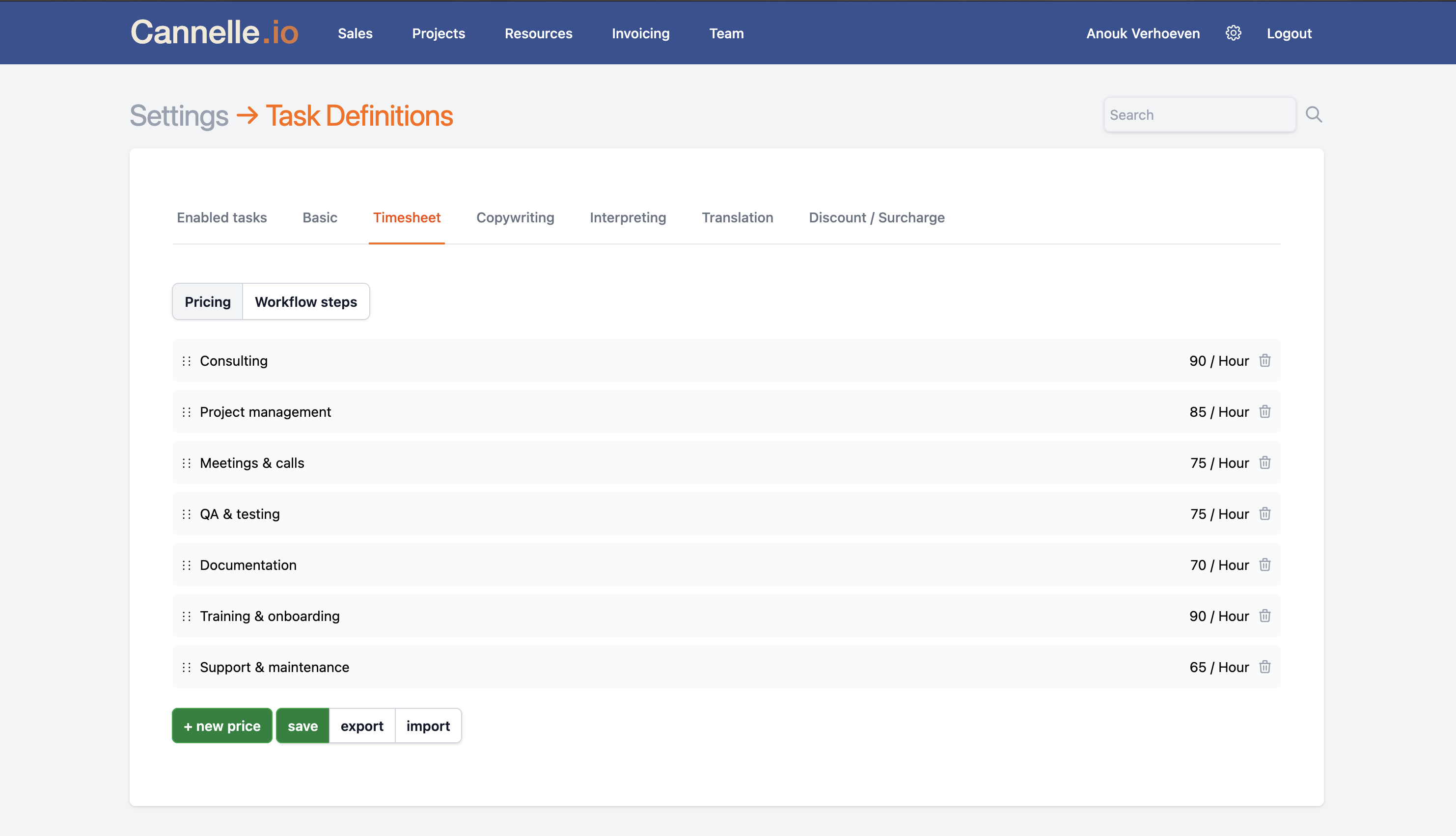
// defaults, not handcuffs
These are company-wide starting points. When you add a Timesheet task to a specific project you can override any activity's price — or add a project-only activity — so the catalogue stays clean while each project bills at the rate you agreed.
Adding it to a project
Open a project's task list, click Add task, and pick Timesheet from the type dropdown. Give it a title, then choose which billable activities apply. All defaults are pre-selected — untick the ones you won't use, or override a price and unit for this project only. The task is created with a value of 0; it grows on its own as time is booked.
Next, assign the people who'll do the work. Click Assign on the task, search by name or pull someone from the History tab, and set their rate — what they are paid per unit of time. That rate is stamped on every hour they book. You can assign several resources to the same task; each gets their own rate and their own timesheet.
// two prices, one task
An activity carries the client price (set on the task) while each assignment carries the resource rate (set when you assign). The gap between them is your margin — and because both come from booked time, you can see it grow in real time.
Booking hours
Whenever a project contains a Timesheet task, a Timesheet tab appears on it. Inside is a familiar week grid: one row per activity, one column per
day, Monday through Sunday. Use the ← → arrows to move
between weeks, and type a quantity into any day cell — quarter-hour steps like 1.25 are fine. The entry saves the moment you
leave the cell, and row, day, and week totals update as you type.
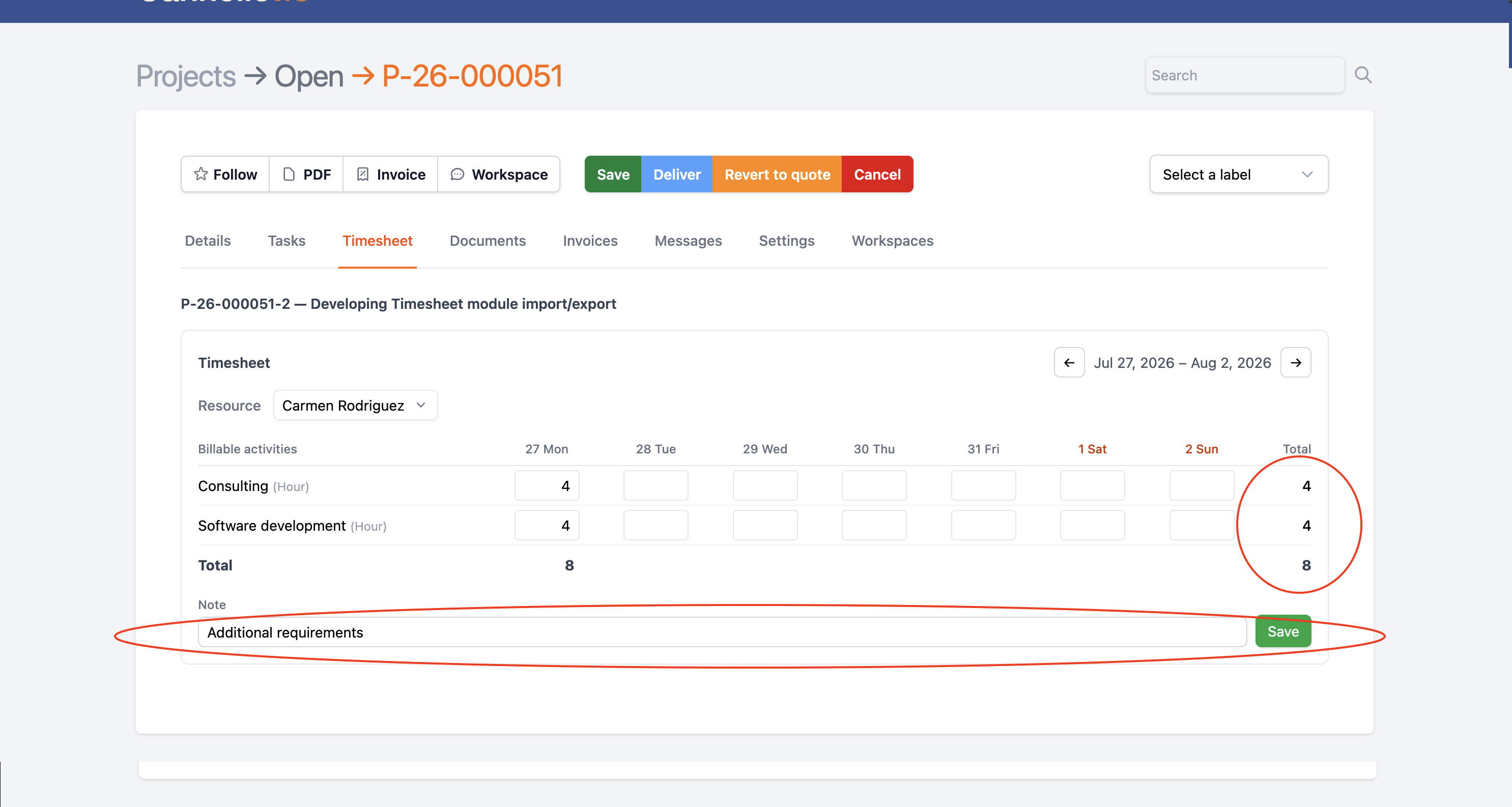
Need to explain an entry? Click the cell, type a note in the field below the grid, and save — cells with a note are highlighted blue. Project managers with several resources on a task switch between them in the Resource dropdown; regular users simply see their own timesheet. Correcting time is just as easy: change the number, or clear the cell to remove it.
Freelancers book in Atelier
Not everyone who works on your projects has a Cannelle account — and they don't need one. External resources book their hours through Atelier, the client-and-resource portal. They log in with a magic link, open Timesheets in the top navigation, pick the right assignment, and fill in the same weekly grid.
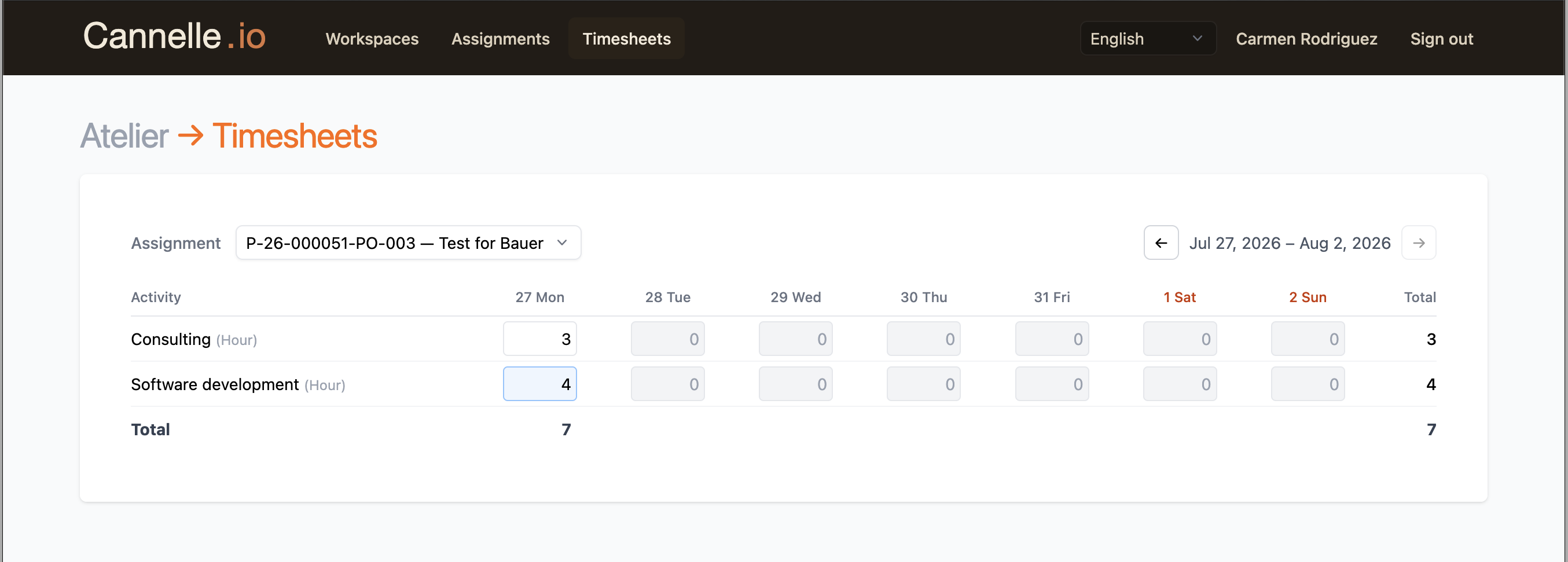
The Atelier grid has a couple of guardrails. Future days are locked — time can only be booked for today and earlier — and a single day can't exceed a real day's worth of its unit (24 hours, for example). Resources see and edit only their own entries, and everything they book shows up in Cannelle for the project manager immediately. No email attachments, no re-keying.
// new to atelier?
Atelier is the portal built into Cannelle for clients and resources. Meet Atelier →
Review, report, invoice
Because booked time flows straight into the task, the numbers are always current. On the project task list, the Timesheet task's value is the running total of booked time × each activity's client price, and its costs reflect booked time × each resource's rate. Open the Timesheet tab and switch resources to review each person's week, correcting entries on their behalf if you need to.
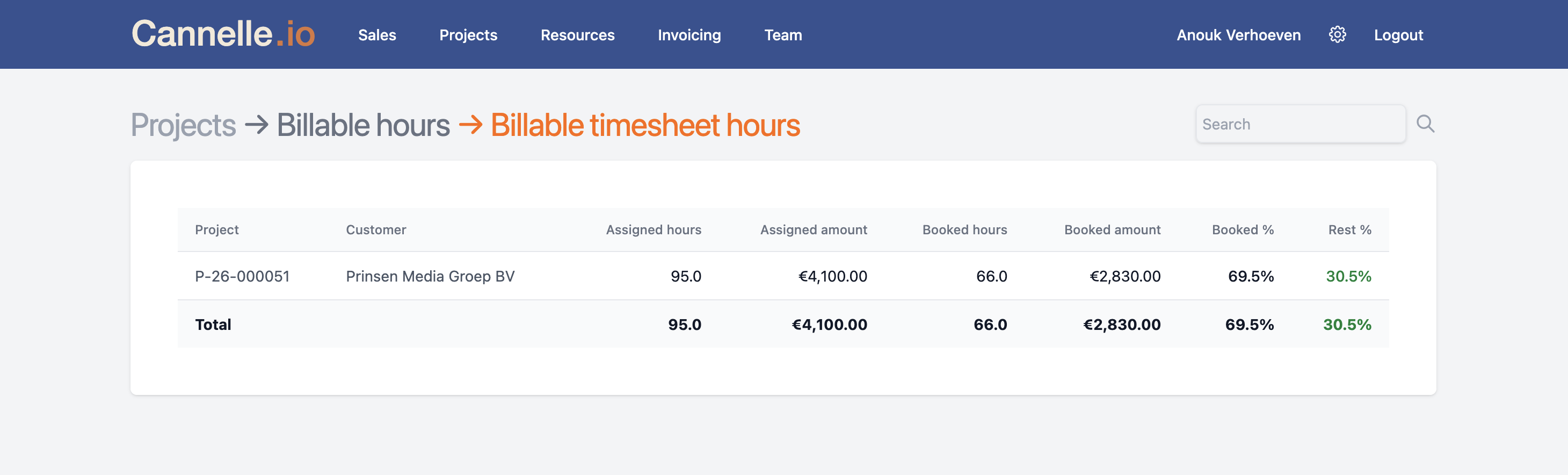
For the bigger picture, the Billable timesheet hours report (under Projects → Billable hours) compares what was assigned against what has actually been booked — assigned hours and amount, booked hours and amount, and the percentage still left to run. It's the fastest way to see how much of a project's budget has been consumed.
Invoicing needs no special handling. When you create a draft invoice for the project, the Timesheet task's current running total is picked up automatically alongside every other task. The rule is simply: book time first, invoice after.
// a few things worth knowing
Quantities are always in the activity's unit — a 1 on a Day activity is one day, not one hour. Resource rates are snapshotted when an
entry is created, so changing an assignment's rate later only affects new bookings —
while changing an activity's client price re-values all of its entries. And only open
projects appear on the Timesheet tab; already-booked time stays on the task after the
project is closed.