Move work to
another client.
Why move a project?
A project or quote in Cannelle belongs to a client. Most of the time that link is obvious and permanent — you quote a client, the quote becomes a project, the project gets invoiced, and the same name is on everything from start to finish.
But not always. Sometimes the client you need to bill isn't the client you started with — a group restructures, a placeholder needs to become a real account, or an honest mistake sends a whole project to the wrong record. Until now the only fix was to rebuild the project from scratch, re-entering every task, rate, and detail by hand.
You can now move an active quote or project to a different client in a couple of clicks — with all of its tasks, values, and history intact.
When you need it
Three situations come up again and again:
The work was scoped with one company but the client asks you to invoice a different entity in the same holding. Move the project to the billing company and carry on — no re-quoting.
You keep ready-made projects set up under your own company — standard packages, recurring offers — and attach them to a real client the moment a deal lands. Build once, assign in seconds.
A project ended up on the wrong client and it is far too much work to recreate from scratch. Point it at the right client and the problem is gone.
How it works
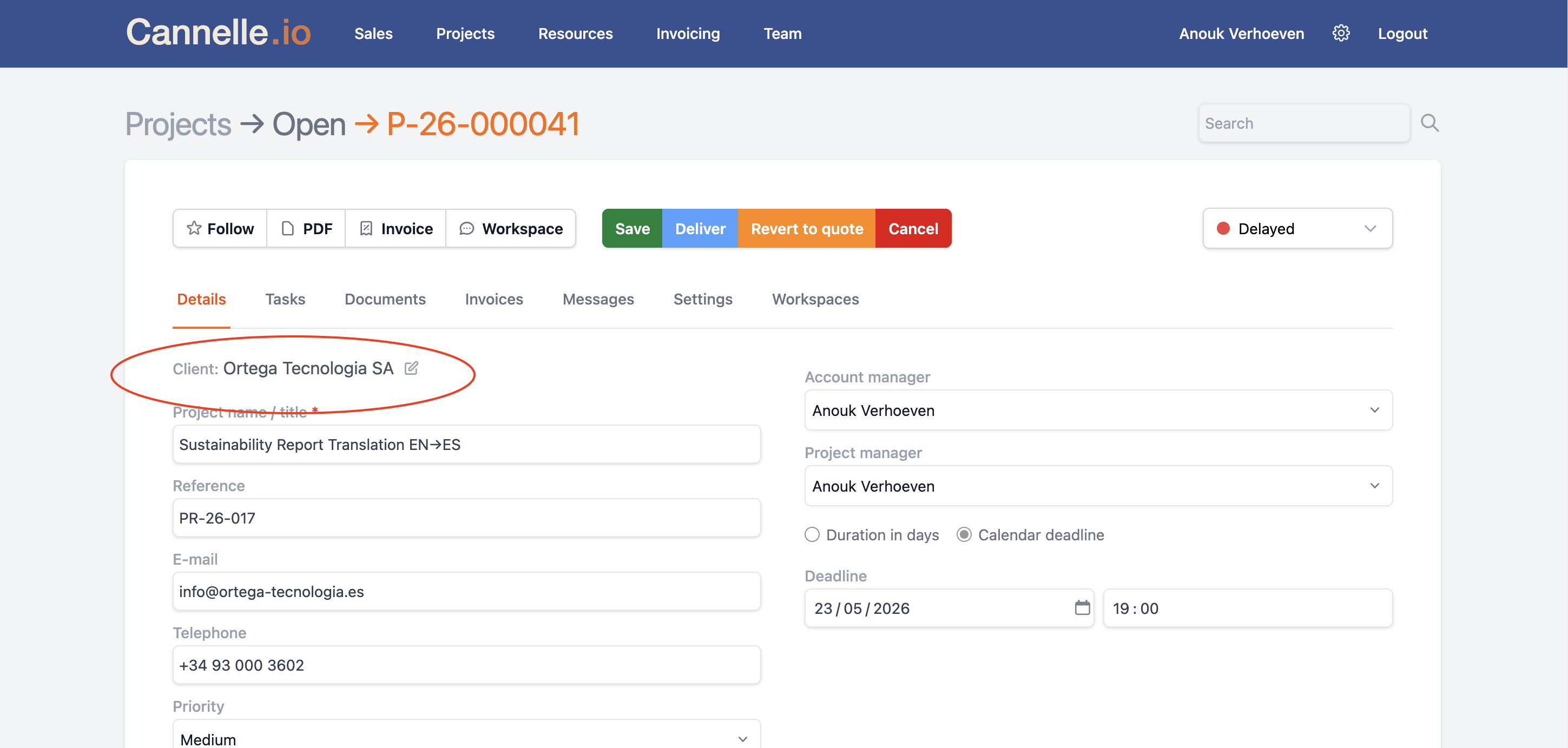
Open the quote or project and go to its Details tab. Next to the client name you'll find a small Change client icon. Click it to start.
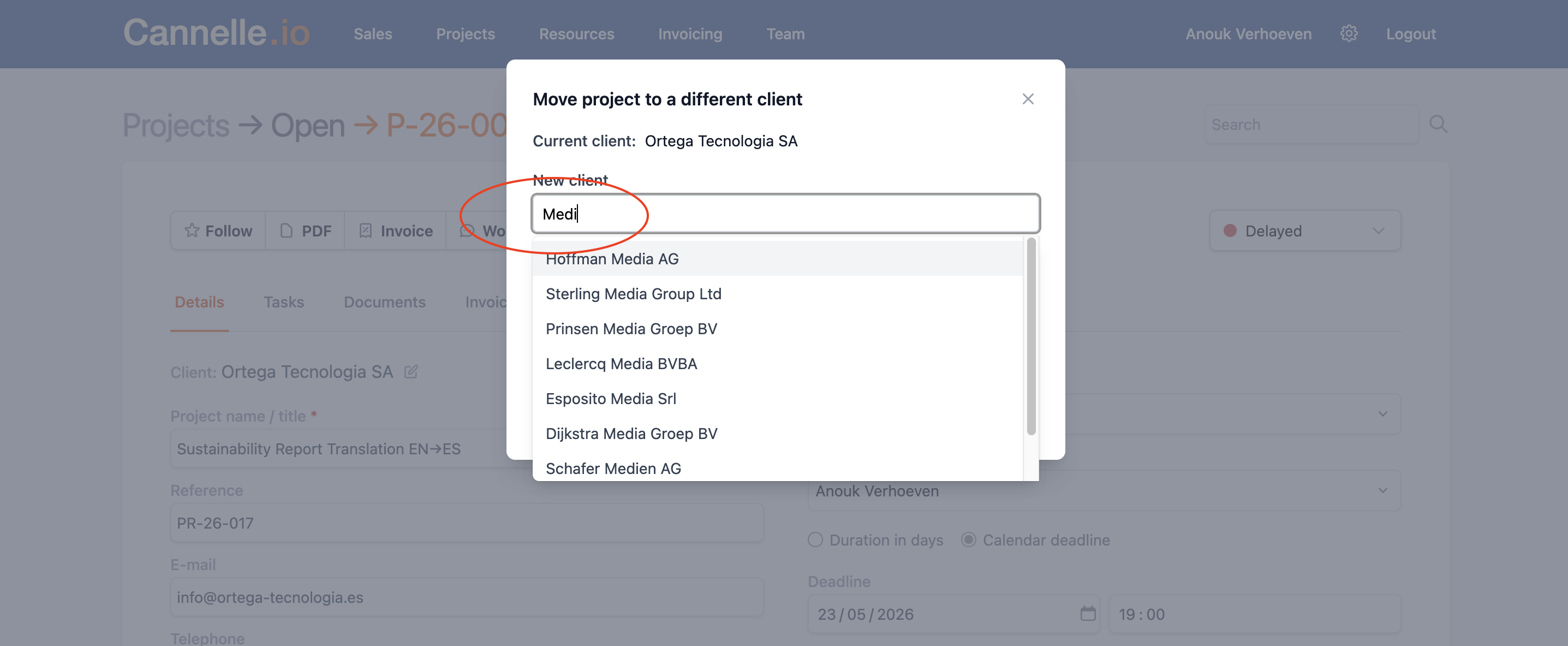
A dialog opens showing the current client. Start typing in the New client field and Cannelle searches your client list as you go — pick the one you want from the results.
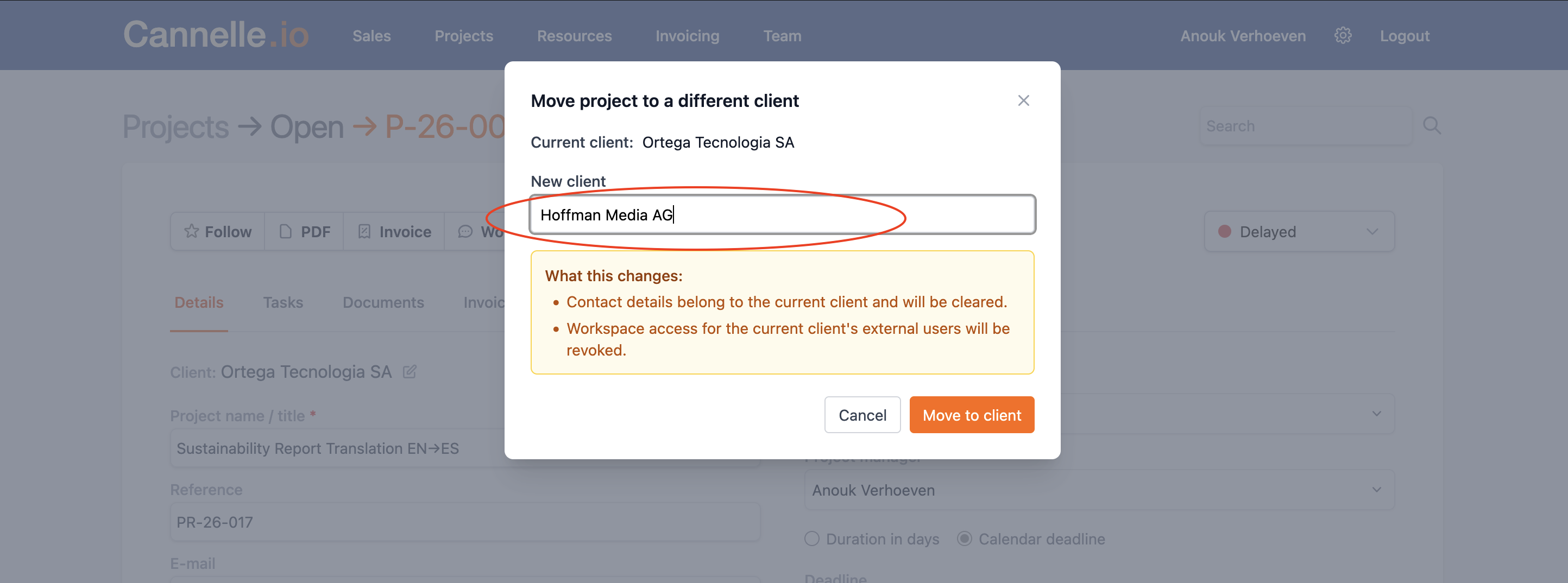
Before you commit, Cannelle spells out exactly what the move will change so there are no surprises. Read the summary, then click Move to client to confirm.
What moves, what stays
The point of the feature is that the work comes with you. Everything that makes up the project itself is untouched by the move.
// comes along
Every task, rate, unit, and total moves with the project. Nothing to re-enter, nothing to recalculate.
Name, reference, deadline, priority, tags, remarks, and the account and project managers all stay exactly as they were.
Any project workspaces follow the project to the new client, so your internal collaboration carries over.
// is cleared or kept back
The contact person, email, and phone belonged to the old client, so they are cleared. Fill in the new client's contact afterwards.
Any invoices already raised stay linked to the client they were billed to — your accounting history is never rewritten.
External users from the previous client lose their workspace access, so the wrong people can't see the moved project.
// the pipeline keeps up
Moving work to a client promotes that client in your sales pipeline automatically — a moved quote makes the new client a Prospect, and a moved project makes them a Client. No separate step to keep your CRM tidy.
Good to know
// active work only
You can move quotes and active projects. Completed or cancelled projects are locked — their history is settled and stays with the client it was delivered to.
// quotes move too
The same Change client action lives on quotes. Draft an offer under a placeholder, then point it at the real client once it's confirmed — the whole quote comes along.
// it's logged
Every move is recorded in the project's history — from which client, to which client — so there's always a clear trail of what happened and when.
// try it in the demo
The live demo at demo.cannelle.io is full of sample projects. Open one, head to the Details tab, and try the Change client action for yourself. How to access the demo →